Remote control app for Samsung Smart TVs and SmartView screens
Trusted remote control app for Samsung TVs since 2015. Control from phone or watch over the local network. It is a practical backup remote for everyday moments when the original remote is missing, out of batteries or across the room.
10M+ app store downloads4.5 star app store rating194K+ public app store reviewsApple Watch and Wear OS supportWorks with all Samsung Smart TVs
Many remote apps focus on a single Samsung protocol. This app supports all Samsung Smart TV remote-control generations.
2010-2013Legacy Smart TV protocolEarly Samsung Smart TV models using the older network remote-control protocol.
2014-2015Orsay / transition generationModels around the Orsay Smart TV generation and the first Samsung Tizen TV transition.
2016+Tizen Smart TV protocolModern Samsung Smart TVs with Tizen-era discovery, pairing, remote control and app features.
Samsung's Tizen TV platform became the basis for new Smart TVs in 2015. Older TVs use the pre-Tizen Smart TV/Orsay generation, so broad support matters for long-lived Samsung TVs.
Choose the remote layout that feels right
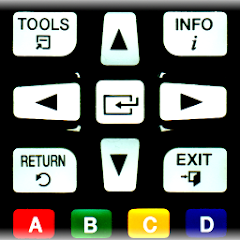
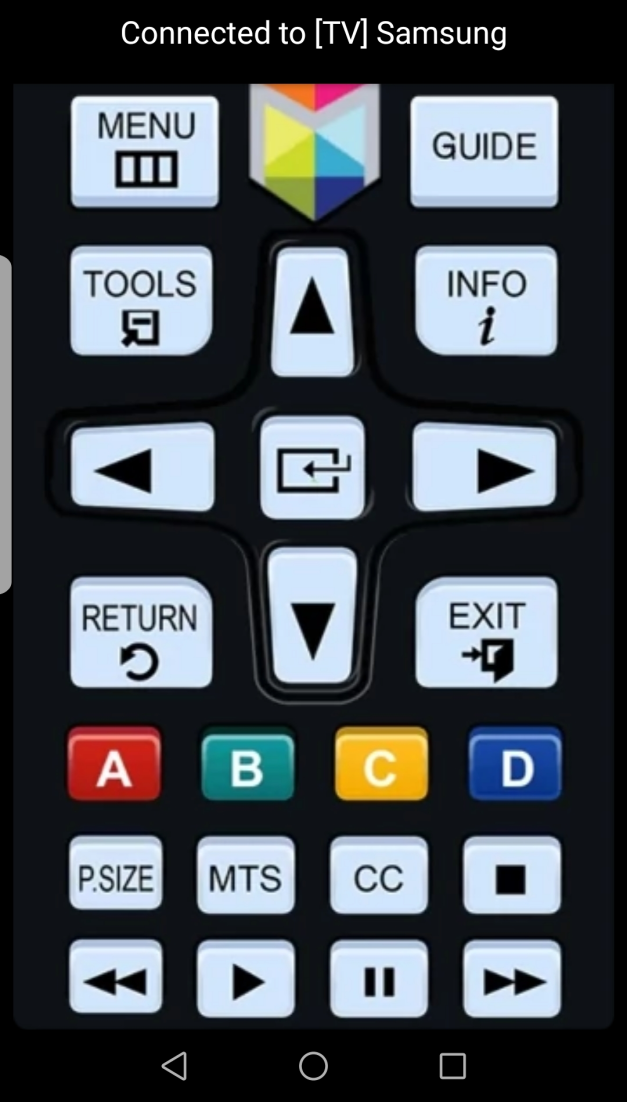
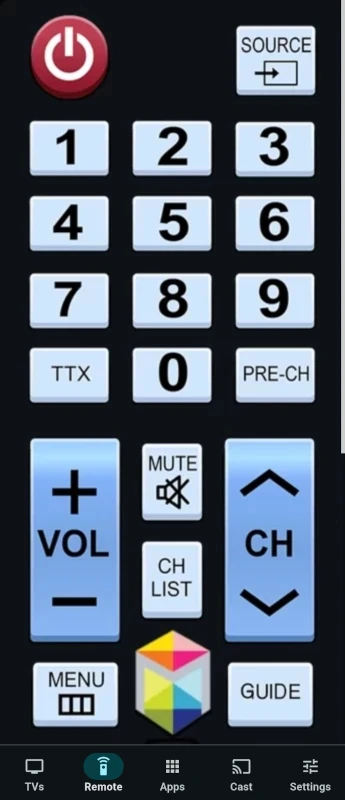
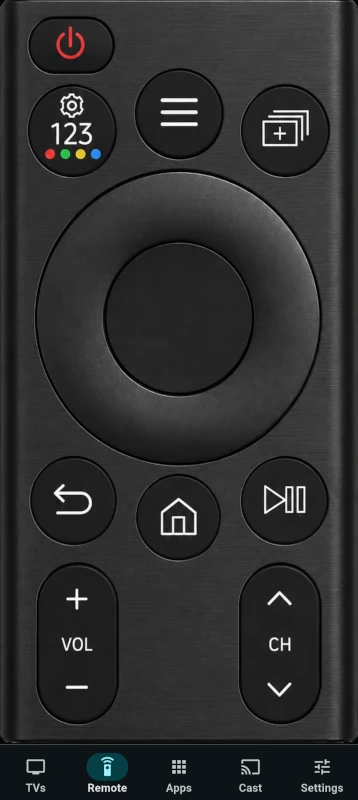
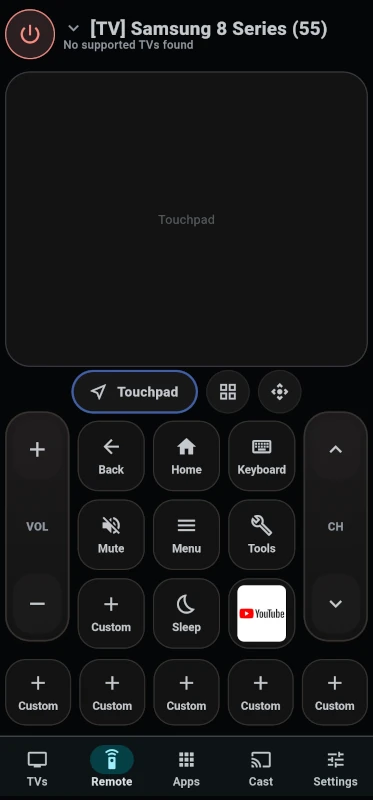
Use a familiar picture remote when you want the app to look like a physical Samsung remote, switch to a simpler remote for everyday controls, or build a custom layout with the buttons and app shortcuts you use most.
Full remote
A familiar physical-remote style layout with the full set of traditional buttons.
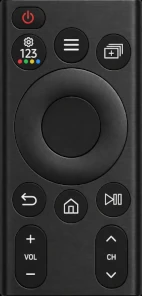
Minimal remote
A cleaner picture remote focused on navigation, volume, channel and media controls.
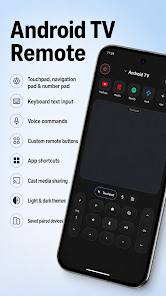
Custom remote
A configurable layout where you can add your own buttons and keep favorite actions close.
Everything you need in a daily Samsung remote
Fast controls for the couch, practical tools for setup, and shortcuts for the actions you use most.
Full remote controlsNavigation, volume, channel, media playback, number keys and color buttons.
Touchpad and keyboard inputSwipe, navigate and type from your phone when the TV model and active app support it.
Cast to your Samsung TVShare photos, videos and media from your phone to the TV when your model supports casting.
App shortcutsOpen and keep favorite TV apps close without digging through Samsung menus.
Custom buttonsBuild a personal remote with the controls and commands that match your routine.
Apple Watch and Wear OS remoteControl the TV from your watch for quick volume, navigation and playback actions.
Setup and support.
Most Samsung TV Remote issues are caused by local network discovery, TV permissions or first-time pairing. Start with these checks before contacting support.
The app cannot find my Samsung TV. What should I check?
Make sure your iPhone or Android device and Samsung TV are connected to the same local network. Disable VPN, guest network, private relay or mobile hotspot modes while pairing, then restart the app and scan again.
Keep the TV switched on during discovery.
Use the same Wi-Fi network name for the phone and TV when possible.
Check Samsung TV settings for mobile device or network remote permissions.
Accept any permission prompt shown on the TV screen.
Why does my Samsung TV ask me to accept the connection every time?
This is controlled by the TV permission settings, not by the phone app. On many newer Samsung TVs, open All Settings > Connections > External Device Manager > Device Connect Manager > Access Notification. If the TV offers prompt behavior choices, avoid the option that asks every time; choose First Time Only to approve a device once, or Off if you want approved devices to connect automatically without future prompts.
From the same Device Connect Manager screen, open Device List to remove old denied entries or check whether your phone is already listed. On some older TV models, the same setting path starts under General instead of Connections.
How do I find my TV IP address if automatic discovery does not work?
On most recent Samsung TVs, open All Settings > Connection > Network > Network Status, then select IP Settings. The TV IP address is shown with the current network details.
On some models, start from General > Network instead. You can also find the TV in your router or Wi-Fi app's connected-device list. Make sure the phone and TV are on the same local network before using Add by IP.
How can I approve the first connection if my original remote is not available?
Samsung TVs have a physical TV Controller button. Depending on the model, it is usually on the bottom right, bottom center or near the remote-control sensor. Press it while the TV is on to open the control menu, then use the on-TV controls to move to Allow or Accept and select it.
If the panel control is hard to use, try connecting a simple USB keyboard, mouse or game controller to the TV. Support varies by model, but many Samsung TVs can use physical input devices for basic navigation when the original remote is not available.
What should I try if pairing still does not work?
Cold boot the TV first. With the TV turned on, point the original Samsung remote at the TV and hold Power until the TV turns off and back on again. Samsung says this usually takes about 5 seconds and helps clear temporary TV software state.
After the TV starts again, keep it on the same Wi-Fi network as your phone, open the remote app and accept any prompt shown on the TV. If a previous attempt was denied, remove the phone from Device Connect Manager > Device List and try again.
What happens during first-time pairing?
Many Samsung Smart TVs ask you to approve a new phone the first time it connects. Keep the original TV remote nearby because you may need to confirm access or enter a PIN shown on the TV screen.
Can the app turn my TV on and off?
Turning the TV off usually works once the app is connected. Turning it on depends on the Samsung TV model and whether network wake is supported and enabled. Some TVs do not accept network commands while fully powered off.
Why does keyboard input not work everywhere?
Keyboard input depends on the TV model and the app currently running on the TV. Some streaming apps use their own on-screen keyboard and do not accept external keyboard input from a remote app.
Is this an official Samsung app?
No. TV Remote for Samsung is an independent third-party app. Samsung is a trademark of Samsung Electronics Co., Ltd. The app is not affiliated with or endorsed by Samsung.
How can I contact support?
Choose the platform below. After the human check, your email app will open with the correct support address. Include your TV model, phone model, OS version and a short description of the pairing step where the issue happens.
Still need help?
Contact Null Island for Samsung TV Remote support on iOS or Android.